The review workflow
How submissions move from new to replied, and what each action does.
The inbox
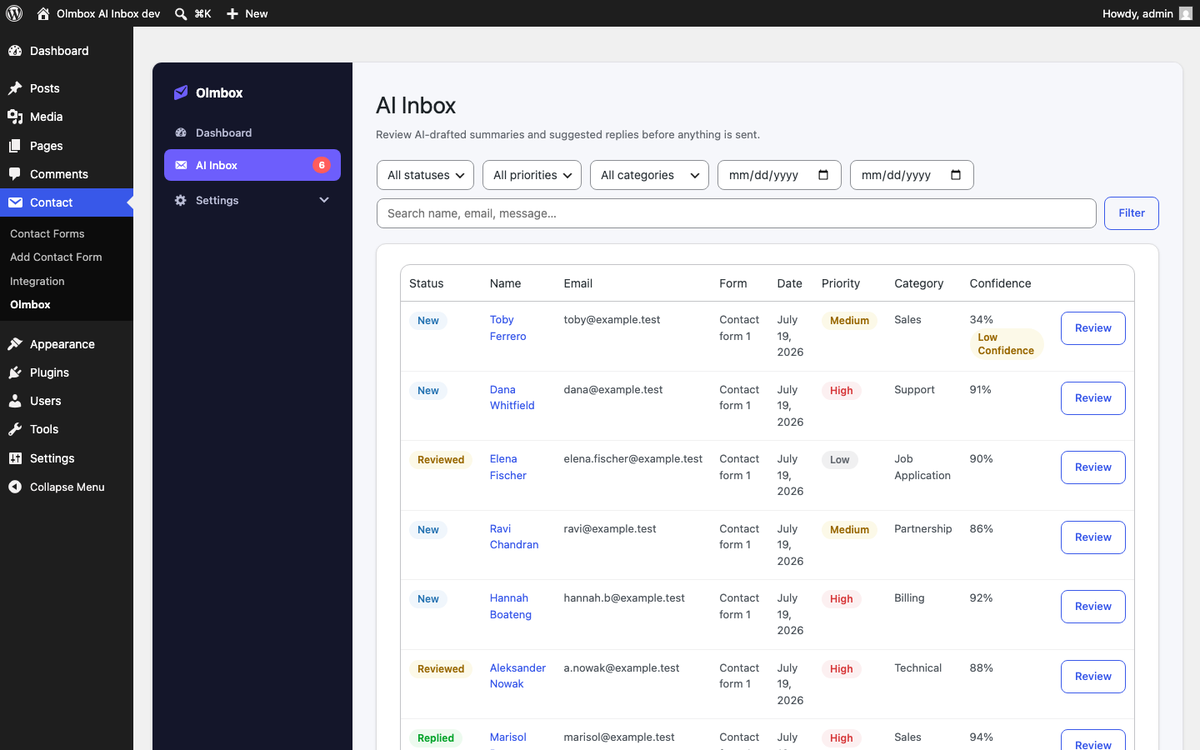
Every analysed submission lands in Contact → Olmbox → AI Inbox with a status, priority, category and confidence score. The list is newest first and can be filtered by status, priority, category or date range, or searched by name, email or message text.
The count beside AI Inbox in the sidebar is the number still awaiting review.
Two different statuses
This trips people up, so it is worth stating plainly. Each row carries two separate pieces of state:
- Status — where the submission is in your workflow: new, reviewed, replied or archived.
- AI status — how the analysis went: success, partial, failed, or no API key.
A submission can perfectly well be new and failed: it arrived, the provider was
unreachable, and it is waiting for you to reply by hand.
Reviewing a submission
Clicking Review opens a page showing the customer’s details, the original message exactly as submitted, the AI summary, an editable draft reply, and the reasoning behind the classification.
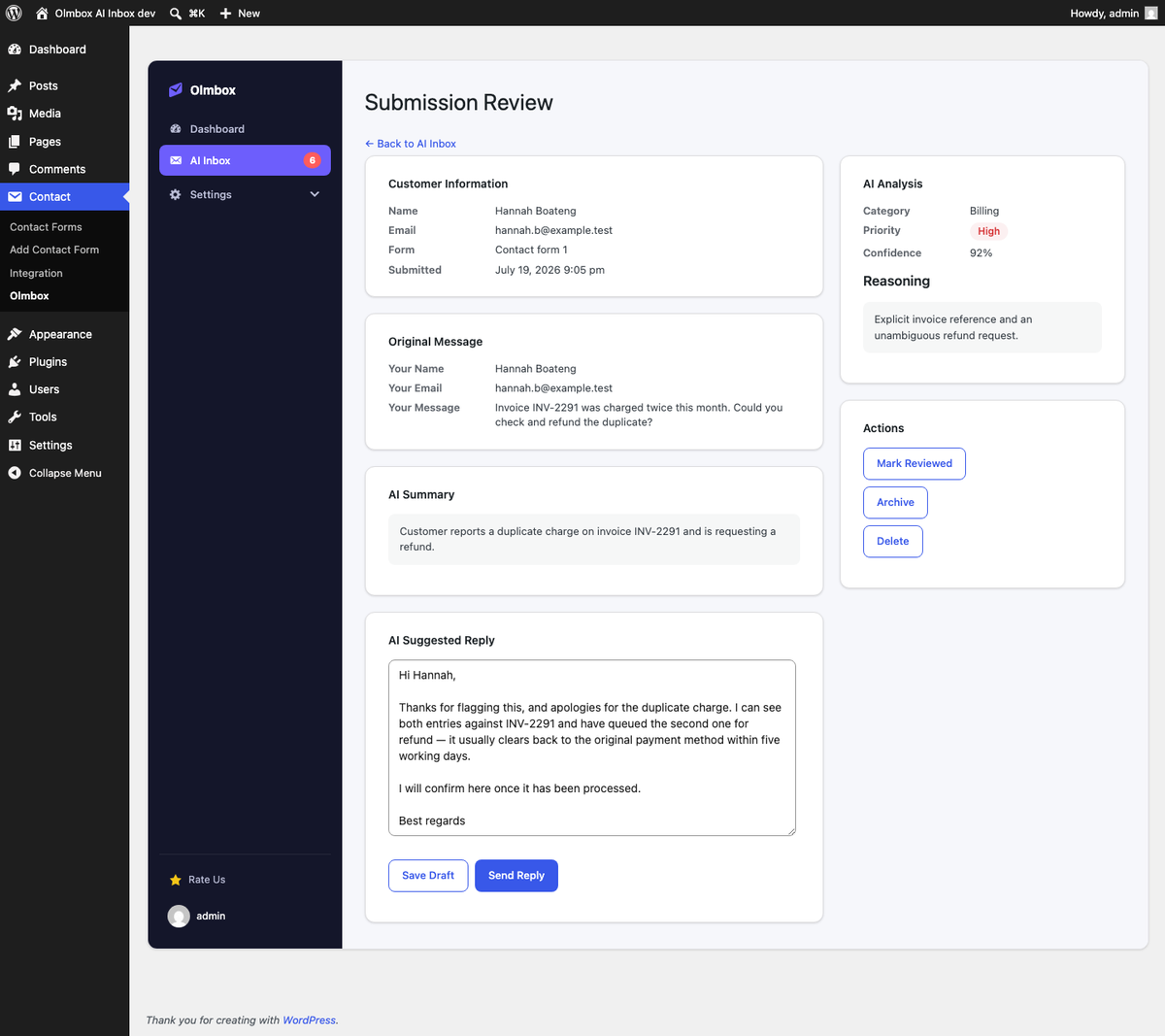
The available actions are:
- Save Draft — store your edits to the reply without sending or changing status. Use this to come back later.
- Send Reply — email the reply to the visitor. A confirmation step stands in front of it. This is the only action anywhere in the plugin that emails a visitor.
- Mark Reviewed — record that you have dealt with it, without sending anything. Useful for spam, or for messages you answered elsewhere.
- Archive — move it out of the active list.
- Delete — remove the row permanently. This cannot be undone.
Sending a reply records who sent it and when, and moves the row to replied.
Confidence scores
The model reports how confident it is in its own analysis, normalised to 0–100. Anything below 60 is flagged as Low Confidence in the list and on the review screen.
A low score usually means the message was short, vague or ambiguous — the sort of enquiry where a drafted reply is most likely to guess wrong. Treat the flag as a prompt to read the original more carefully, not as a reason to distrust the plugin.
Retention
The log keeps the most recent 200 submissions to your enabled forms. Older rows are pruned automatically as new ones arrive, and the whole table is dropped when the plugin is uninstalled.
If you need submissions kept indefinitely, keep using Contact Form 7’s own notification emails or a dedicated form-entries plugin as your record. Olmbox’s log is a review queue, not an archive.